
Quick summary
- Google Search Console now has a dedicated Generative AI report that shows how often your pages appear in AI Overviews, AI Mode and AI features in Discover.
- It launched for a small group of sites on June 3, 2026 and, as of August 31, 2026, is available to all websites worldwide.
- The report shows impressions only, broken down by pages, countries, devices and dates. There are no clicks or queries in it yet.
- Since September 24, 2026 you can also filter by multimodal search, which covers Lens, Circle to Search and image searches.
- The real value comes from comparing AI impressions with the clicks the same pages earn in your normal Performance report.
For a long time, AI search was a blind spot. You could see AI Overviews showing up for your keywords and you could see click-through rates moving, but you had no first-party data on how often Google was actually using your pages inside its AI answers.
That has changed. Google Search Console now gives every site a separate view of its visibility in generative AI features. In this guide we explain what the report shows, what it leaves out, and how to use it to track AI Overviews and AI Mode in a way that helps your SEO decisions.
What Google launched, and when
Google announced the Search Generative AI performance reports on June 3, 2026. At first only a subset of websites could see them while Google tested and collected feedback. Google has since updated that announcement to confirm the reports were rolled out to all websites worldwide as of August 31, 2026.
Google says
“As of August 31, 2026, we’ve rolled out these insights to all websites worldwide.” (Google Search Central Blog)
There are two dedicated reports: one for Search and one for Discover. They cover generative AI features such as AI Overviews and AI Mode in Search, plus the generative AI features in Discover.
One detail that often gets missed: this AI data is still counted in your overall Performance report as well. The new report does not move traffic out of the main numbers. It simply gives you a separate lens on the AI part of it.
Where to find the AI report in Search Console
- Open Search Console and pick your property.
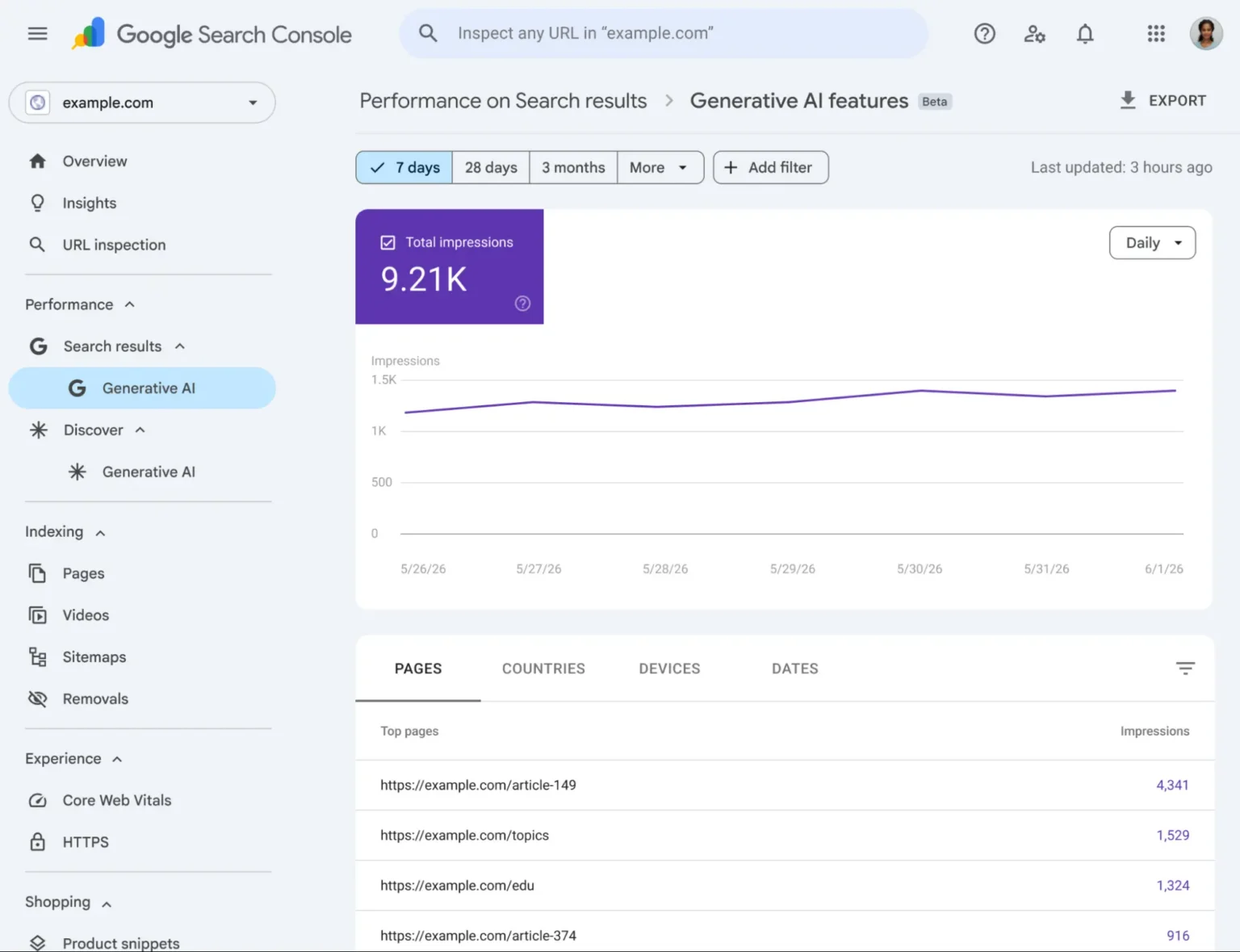
- In the left menu, open Performance, then Search results, then Generative AI.
- For Discover, open Discover, then Generative AI.
- Use the date picker and the Pages, Countries, Devices and Dates tabs to explore, and Export to download the data.
What the report shows
According to Google, the report gives you five views of your AI visibility:
- Impressions: how often URLs from your site appeared in generative AI features in Search and Discover.
- Pages: which of your URLs appeared in those features.
- Countries: where people saw them.
- Devices: which devices people used (available for Search results).
- Dates: trends over time, with hourly, daily, weekly and monthly views.
New since September: multimodal search
On September 24, 2026, Google added a multimodal search type filter to both the main Performance report and the Generative AI report. It shows how your content performs when people search with images, which includes Google Lens, Circle to Search on Android, image uploads to Google Search and Chrome’s “Search this image” option. If you sell products or publish a lot of visual content, this filter is worth checking every month.
What the report does not show (yet)
This is the part most people need to understand before they report the numbers to a client or a manager.
- No clicks. You can see that a page appeared in an AI feature, but not whether anyone visited your site from it.
- No queries. You can’t see which searches triggered the AI answer that used your page.
- No position or CTR. There is no average position or click-through rate in this view.
Google says it is working with site owners to understand which extra data would help, including adding more metrics over time. For now, treat the report as a visibility report, not a traffic report.
Watch out
Don’t add AI impressions to your normal impressions in a report. They are already included in the overall Performance numbers, so adding them again counts the same visibility twice.
How to track AI Overviews and AI Mode the useful way
An impression in this report means Google chose your page as one of the links supporting an AI answer. On its own that is a nice number. It becomes useful when you put it next to the clicks the same page earns in the standard Performance report.
Export both reports for the same date range and match them by URL. Most pages will fall into one of four groups:
1. High AI impressions, high clicks
These are your strongest pages. Google trusts them as a source and people still click through. Protect them: keep them up to date, keep internal links pointing at them and don’t change them without a good reason.
2. High AI impressions, low clicks
Google uses these pages to answer questions, but people get what they need without visiting. Check whether the page gives a clear reason to click, such as a tool, a price, a checklist, examples or a next step. For service and product pages, make sure the call to action is easy to find.
3. Low AI impressions, high clicks
These pages earn traffic from classic results but rarely appear in AI answers. If AI Overviews start showing more often for their topics, this traffic is at risk. Make sure they answer the main question clearly near the top, are well structured and are easy for Google to read as text.
4. Low AI impressions, low clicks
These pages need the most work. Start with the basics: is the page indexed, does it match what people actually search for, and is it genuinely helpful? Our SEO audit usually finds these pages in the first week.
Expert tip
Check the Countries tab against where your customers actually are. If most of your AI impressions come from a country you don’t sell to, that visibility looks good on a chart but won’t bring you business.
Use Claude to compare your AI and organic data
Matching two exports by URL by hand takes a while. If you use Claude, export the Generative AI report and the standard Performance report (Pages tab) for the same date range, upload both CSV files and use a prompt like this:
Prompt: sort pages into the four groups
Claude prompt
I've attached two Google Search Console exports for the same date range: one from the Generative AI report and one from the standard Performance report (Pages tab). Match them by URL. For each page, show AI impressions, organic clicks and organic impressions. Then put every page into one of four groups: high AI impressions and high clicks, high AI impressions and low clicks, low AI impressions and high clicks, and low on both. Use the median of each column as the cut-off. Give me a table for each group and a short list of the five pages I should improve first, with one reason each.
Always check the results against Search Console yourself before acting on them. Claude does the sorting quickly, but you know which pages matter most to your business.
Can you keep your content out of AI features?
Google is clear that AI is part of how Search works, so there is no separate switch just for AI Overviews or AI Mode. According to Google’s AI features documentation, the controls are the same ones you already use for Search: robots.txt for crawling, and nosnippet, data-nosnippet, max-snippet or noindex to limit what is shown.
Google says
“There are no additional requirements to appear in AI Overviews or AI Mode, nor other special optimizations necessary.” (Google Search Central)
For most businesses, limiting snippets is a bad trade. It reduces how your pages appear in regular results too, not only in AI answers. It only makes sense for content with a specific reason to stay out, such as paid or licensed material.
How to get more of your pages into AI answers
There is no special trick. Google’s guide to optimizing for generative AI features and its AI features documentation point back to the SEO basics:
- Let Googlebot crawl the pages in robots.txt, and check your CDN or host isn’t blocking it.
- Link to important pages from other pages on your site so they are easy to find.
- Put the important content in text, not only in images or videos.
- Support the text with good images and videos where they help.
- Make sure your structured data matches what is visible on the page.
- Keep your Merchant Center and Business Profile details up to date.
- Write helpful, original content that answers real questions from your customers.
Google also says you don’t need special AI text files or extra schema to appear in these features. If you want a hand applying this to your site, see our AI SEO services and technical SEO services. Store owners can also read How to Get Your Shopify Store Recommended in ChatGPT, Gemini and Google AI Mode, and Wix users can compare this report with Wix’s own tool in our guide to the Wix AI Visibility Overview.
A simple monthly routine
- Export the Generative AI report and the standard Pages report for the last 28 days.
- Sort your pages into the four groups above.
- Pick three pages to improve this month and note today’s numbers.
- Check the multimodal filter if you sell products or rely on images.
- Compare the same pages next month, and keep a simple log of what you changed.
Frequently asked questions
Is the AI report available for every website?
Yes. Google first released it to a small group of sites on June 3, 2026 and confirmed it was rolled out to all websites worldwide as of August 31, 2026. If you can’t see it, your site may not have appeared in generative AI features yet.
Does the Search Console AI report show clicks?
No. It currently shows impressions only, with breakdowns by pages, countries, devices and dates. Google says it may add more metrics over time.
Are AI Overviews impressions also in the normal Performance report?
Yes. AI feature visibility is still included in the overall Performance report. The Generative AI report is a separate, dedicated view of the same data.
Can I block my site from AI Overviews only?
There is no AI-only switch in Search. Google’s controls are robots.txt and the snippet controls nosnippet, data-nosnippet, max-snippet and noindex, which also affect how your pages appear in regular results.
Do I need llms.txt or special schema to appear in AI Overviews?
No. Google says there are no extra technical requirements and no special files or markup needed. A page must be indexed and eligible to show with a snippet.
Need help reading your AI data?
If you have the data but aren’t sure what to do with it, talk to our team. We’ll look at your Generative AI report next to your organic traffic and tell you which pages to work on first. You can also browse more AI SEO guides on our blog.