A shopper types “best waterproof hiking shoes under 5,000 rupees” into ChatGPT or Google AI Mode. A few seconds later they get a short list of products, with prices, photos and a buy button. Your store could be on that list, or it could be missing completely.
Which one happens depends less on your ads and more on how clean your product data is. This guide walks you through the settings and product fixes that help a Shopify store get picked up by ChatGPT, Gemini, Google AI Mode and Microsoft Copilot. By the end, you will have a checked store, a fixed product template and a simple way to keep it in shape every week.
Quick summary
- AI shopping tools read your product data, not your homepage design.
- Shopify shares eligible products with AI channels through Shopify Catalog, managed under Sales channels > Agentic.
- Clear titles, filled product fields, GTINs and accurate stock matter more than clever copy.
- Copied or thin product descriptions are a bigger risk after Google’s September 2026 spam update.
- Claude can check your whole catalog for gaps in minutes through its Shopify connector.
What changed recently
Two pieces of Google guidance matter for Shopify stores right now.
- September 24, 2026: Google started its September 2026 spam update, listed on Google’s ranking updates page. It took almost 14 days to finish. Google’s spam policies describe “Republishing content from other sites without adding any original content or value” as spam. That is a real risk for stores that copy manufacturer descriptions across many products.
- AI Overviews and AI Mode: Google’s guide to AI features and your website says “There are no additional requirements to appear in AI Overviews or AI Mode, nor other special optimizations necessary.” The usual basics apply: your pages must be indexed and crawlable, important content should be in text, and structured data must match what is on the page.
How AI shopping tools pick products
An AI assistant does not browse your store like a person. It reads structured product information: the title, description, price, stock, variants, category and images. Then it matches that information to what the shopper asked for.
On Shopify, that information reaches AI tools in two main ways. Shopify shares eligible products through Shopify Catalog, which feeds ChatGPT, Microsoft Copilot, Meta and other AI channels. For Google AI Mode and Gemini, products can also come through the Google & YouTube sales channel or Google Merchant Center.
Shopify says
“Being included in Shopify Catalog doesn’t guarantee that a product will appear in a specific AI answer.” (Shopify Help Center)
That line is the whole point of this guide. Being included is the starting line. Clean, complete data is what makes an AI tool choose your product over a competitor’s.
Step by step: get your Shopify store ready
1. Check your Agentic settings
In your Shopify admin, go to Sales channels > Agentic. You need to be the store owner, or have the right staff permissions. Here you will see the AI channels Shopify connects to, such as ChatGPT, Google AI Mode and Gemini, Microsoft Copilot and Meta.
By default, Allow Shopify to manage for me is turned on. That is fine for most stores. Turn it off only if you want to control each channel yourself, for example to switch off direct checkout in one channel. Some channels and checkout options are only available to stores that sell to US customers, so check which ones show as active for your store.
2. Complete your store policies
Go to Settings > Policies and make sure your terms of service, privacy policy, and return and refund policy are filled in. Shopify lists these as requirements for direct checkout in AI channels, and AI tools use them to answer shopper questions like “can I return this?”. You also need to accept the Shopify Agentic Storefronts Supplemental Terms of Service.
3. Rewrite product titles in plain words
Shopify’s own guidance is to keep titles under 150 characters and include the brand, the product type and the attributes that set it apart. Write the title the way a shopper would describe the product out loud.
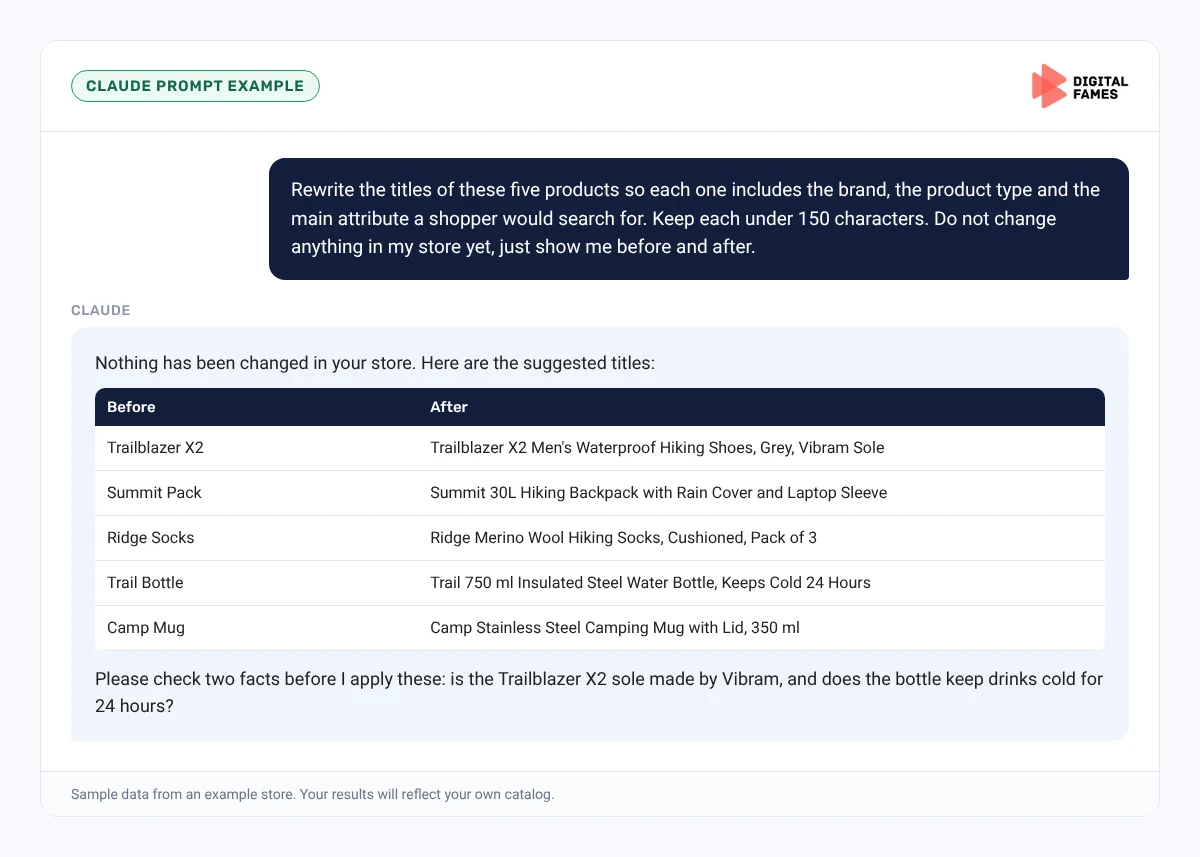
- Before: Trailblazer X2
- After: Trailblazer X2 Men’s Waterproof Hiking Shoes, Grey, Vibram Sole
The second title tells an AI tool exactly what the product is, who it is for and why it is different. The first one tells it almost nothing.
4. Put key specs in fields, not only in the description
Materials, size, weight, care instructions and compatibility should live in proper fields. Use Shopify’s product category, variant options and metafields for these. A spec that sits only inside a paragraph of marketing copy is easy for an AI tool to miss or misread.
5. Give every variant its own identity
Group true variants (size, color, material) under one product, and give each variant its own image, price and stock. Add a GTIN (the barcode number, such as a UPC or EAN) and a SKU to every variant where you have one. Choose the most specific product category Shopify offers. These details help AI tools match your product to precise requests like “size 9, black”.
6. Write descriptions that answer real questions
Think about the questions shoppers ask before buying: Is it comfortable for long walks? Does it run small? How do I clean it? Answer them in short, plain sentences. AI tools are built to answer questions, so a description that already answers them is easy to quote.
Watch out
Do not paste the same manufacturer description across many products. Copied, thin text is exactly what Google’s spam systems look for, and it gives AI tools no reason to choose your listing over every other store selling the same item.
7. Add useful alt text to every image
Describe what the image actually shows: “Grey waterproof hiking shoe, side view, with orange laces”. Alt text helps visually impaired shoppers, Google Images and AI tools that read image context.
8. Connect Google for AI Mode and Gemini
If you have not already, set up the Google & YouTube sales channel in Shopify and link it to Google Merchant Center. This is one of the routes Shopify uses to get your products into Google AI Mode and Gemini. Once connected, check Merchant Center for rejected products and fix them first.
9. Keep price and stock accurate every day
An AI tool that recommends a product that is out of stock, or shows the wrong price, loses the shopper’s trust and yours. Keep inventory synced, remove expired sale prices, and set the correct status for pre-order and made-to-order items. Keep draft and archived products out of your live catalog.
Expert tip
Start with your 20 best-selling products, not the whole catalog. Fix them fully, then use them as the template for everything else. You get the biggest return on the products shoppers already want.
Do it faster with Claude
Checking hundreds of product pages by hand takes days. Claude can do the first pass in minutes. Claude has an official Shopify connector that lets it read your products and, if you allow it, update them. Connect it from Claude’s connectors, sign in to your store, and start with read-only access until you trust the results.
Prompt 1: find the gaps in your catalog
Claude prompt
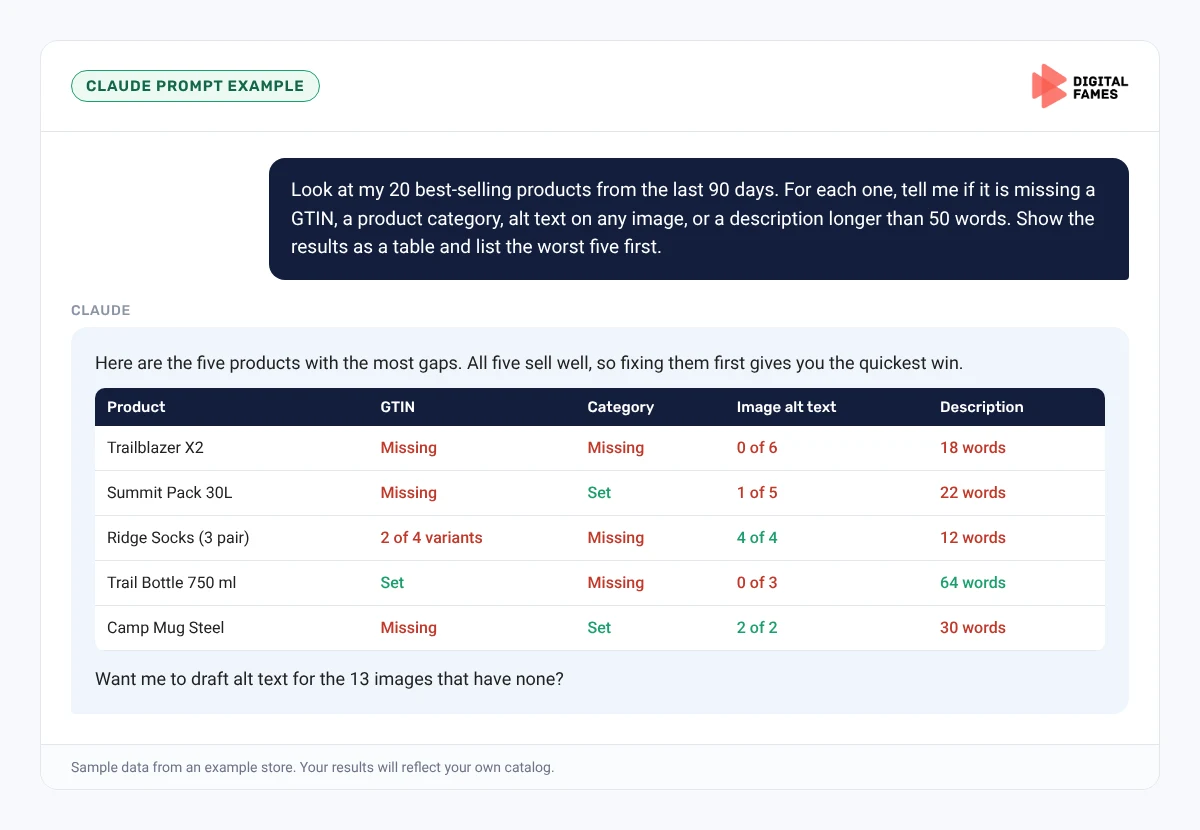
Look at my 20 best-selling products from the last 90 days. For each one, tell me if it is missing a GTIN, a product category, alt text on any image, or a description longer than 50 words. Show the results as a table and list the worst five first.
Prompt 2: rewrite titles for AI search
Claude prompt
Rewrite the titles of these five products so each one includes the brand, the product type and the main attribute a shopper would search for. Keep each under 150 characters. Do not change anything in my store yet, just show me before and after.
Prompt 3: write answers to buyer questions
Claude prompt
For this product, list the five questions a shopper is most likely to ask before buying, and answer each in two short sentences using only the facts in the product data. If a fact is missing, say so instead of guessing.
What to check in Claude’s answer:
- Every fact matches your real product. If Claude says a shoe is waterproof, make sure it is.
- The new titles still sound like your brand, not like a list of keywords.
- Nothing is changed in your store until you have read the changes and said yes.
Common mistakes to avoid
- Turning off Shopify Catalog access by accident while changing channel settings. Your products then stop reaching those AI channels.
- Leaving store policies empty or out of date.
- Using one long product with dozens of unrelated options instead of proper variants.
- Writing titles stuffed with keywords, such as “shoes hiking shoes men shoes waterproof”.
- Letting AI rewrite hundreds of products at once without a person checking the facts.
How to tell if it is working
Check three places every month. In Shopify Analytics, look for visits and orders referred from chatgpt.com and other AI sites. In Google Search Console, look at your AI impressions; our guide on AI search data in Google Search Console explains how to read them. In Google Merchant Center, watch for rejected or limited products.
Frequently asked questions
Do I need a special app to sell in ChatGPT or Google AI Mode?
No. Eligible Shopify stores are connected through Shopify Catalog and managed under Sales channels > Agentic. For Google AI Mode and Gemini, the Google & YouTube channel and Merchant Center help too.
Will my products definitely show up in AI answers?
No. Shopify states that being in Shopify Catalog does not guarantee a product appears in a specific AI answer. Complete, accurate product data gives you the best chance.
Is this available for stores in India?
Some AI channels and checkout options are US-first. Open Sales channels > Agentic in your admin to see which channels are active for your store. The product data fixes in this guide help in every market, including Google search in India.
Can I stop one AI channel from showing my products?
Yes. Turn off Allow Shopify to manage for me, then change the settings for that channel. To hide a single product from all AI channels, set it to Unlisted.
Is it safe to let Claude edit my products?
Start with read-only access and ask Claude to show changes before applying them. Give write access only when you are happy with the results, and always check the facts.
Related guides: Is Your WooCommerce Store Ready for AI Shopping? A Simple Checklist and Wix Stores and AI Search: How to Use the AI Visibility Overview. Browse all our Shopify SEO guides.
Next in this series
Next in the Shopify series: Shopify Product Pages AI Can Read: Titles, Descriptions and Schema Made Simple.
Want us to check your store for you? Our team handles Shopify store development and eCommerce SEO, and we start every project with a free audit. Talk to us.