Two small text files decide a lot about how AI tools treat your Wix site. Robots.txt tells crawlers what they may visit. Llms.txt gives AI agents a summary of your site. Wix lets you manage both from the dashboard, without code.
This guide explains what each file does, what Google actually says about them, and how to set them up safely on Wix.
Quick summary
- Robots.txt controls which crawlers can visit which pages. Mistakes here can remove you from search.
- Wix generates an llms.txt file for you and keeps it updated unless you edit it.
- Google says it does not need any new AI text files for AI Overviews or AI Mode.
- Google-Extended controls whether your content is used for Gemini training and grounding. Google says it does not affect Search ranking.
- Change these files carefully, one rule at a time.
What changed recently
- September 24, 2026: Google’s September 2026 spam update started, listed on Google’s ranking updates page.
- Current guidance: Google’s AI features and your website page says Google does not require new machine-readable or “AI text” files to appear in AI Overviews or AI Mode, and asks site owners to keep crawling open in robots.txt.
Robots.txt in plain words
Robots.txt is a text file at the root of your site that tells crawlers which parts they may visit. Google’s introduction to robots.txt explains the format. A single wrong line can block your whole store from search, so treat it with care.
How to edit robots.txt on Wix
From Wix Help Center:
- Go to SEO & GEO in your site’s dashboard.
- Scroll to Tools and settings and click Robots.txt Editor.
- Click View File, add your rules, and click Save Changes.
- To undo everything, use Reset to Default.
Watch out
Wix says editing robots.txt is an advanced feature and its Customer Care cannot help with changes you make. By default, search engine bots can already access all your public pages, so most stores do not need to change anything.
AI crawler rules
Some AI companies use their own crawlers, such as GPTBot and ClaudeBot, and publish user-agent names you can allow or block in robots.txt. Decide based on your goals: blocking an AI crawler can reduce how often that AI tool can read and cite your pages.
For Google, the control is called Google-Extended. Google’s crawler documentation says it manages whether your content is used for training future Gemini models and for grounding, and that it “does not impact a site’s inclusion in Google Search” and is not a ranking signal.
Expert tip
For most stores that want to be found and recommended, the safest setting is to leave crawlers allowed and focus on the quality of your pages.
Llms.txt on Wix
Llms.txt is a newer, structured text file that gives AI agents a summary of your site. According to Wix Help Center, Wix creates and maintains it automatically. You need an upgraded site with a connected custom domain and search engine indexing turned on.
How to view or edit it
- Go to SEO & GEO and scroll to Tools and settings.
- Click Go to llms.txt, then View File.
- To edit, open More Actions and click Edit file, then Save Changes.
- A toggle lets you turn the file off.
Wix notes that once you edit the file, it stops updating automatically so your changes are kept. If you edit it, set a reminder to update it when you add new collections or important pages. Wix also says the file only includes content that is already public on your site.
Should you rely on it?
Llms.txt is optional and cheap to keep. But Google is clear that its own AI features do not need it. Treat it as a small extra, not a replacement for clear product pages, good internal links and accurate information.
Do it faster with Claude
Prompt 1: check your robots.txt
Claude prompt
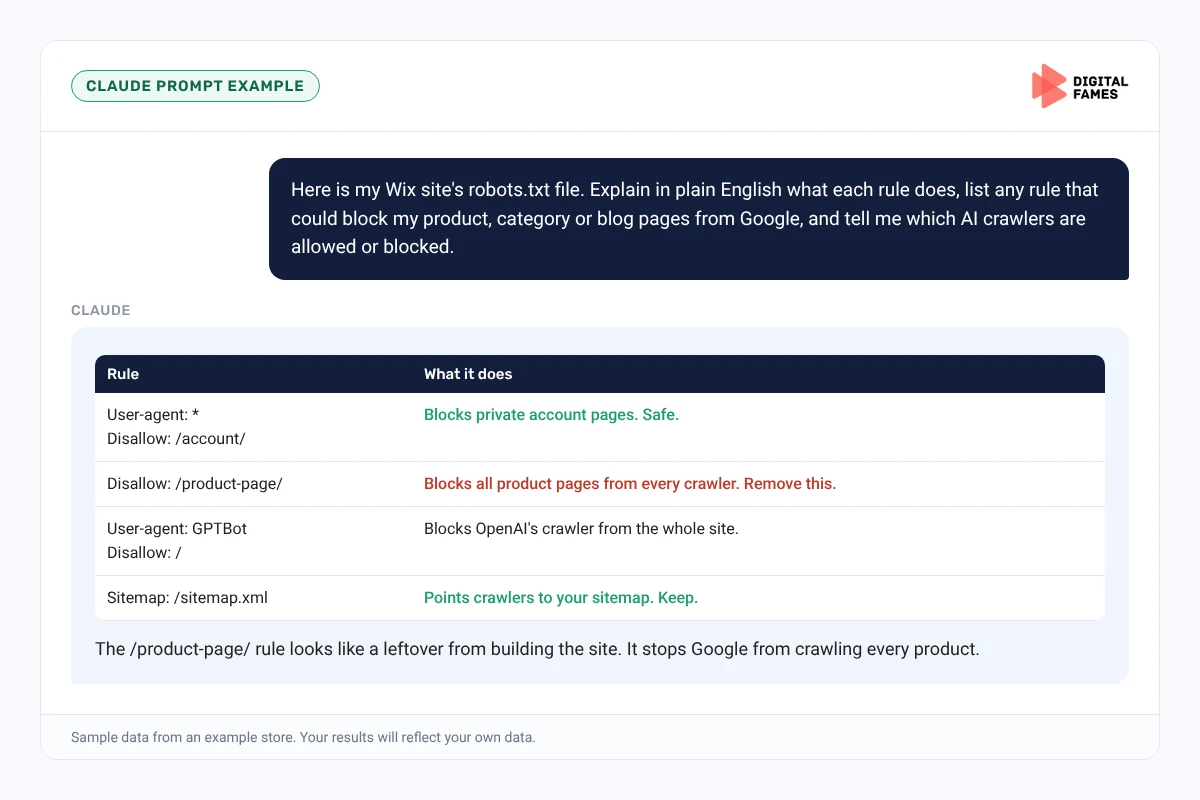
Here is my Wix site's robots.txt file. Explain in plain English what each rule does, list any rule that could block my product, category or blog pages from Google, and tell me which AI crawlers are allowed or blocked.
Prompt 2: improve your llms.txt summary
Claude prompt
Here is my current llms.txt and a list of my main pages. Suggest a clearer short description of the store and the five most important pages to list, using only facts from my site. Keep it under 200 words.
What to check: never paste a rule into robots.txt that you do not understand. Test the live file after saving.
Common mistakes to avoid
- A “Disallow: /” line left over from a site build, which blocks everything.
- Blocking all AI crawlers without deciding whether you want AI visibility.
- Editing llms.txt once and never updating it again.
- Expecting llms.txt to fix weak product pages.
How to tell if it is working
After changing robots.txt, use Search Console’s URL Inspection on a few product pages to confirm Google can still crawl them. Check the AI Visibility Overview in Wix (see part 9) to see when AI bots last crawled your site.
Frequently asked questions
Do I need an llms.txt file to appear in Google AI Overviews?
No. Google says it does not require new AI text files for AI Overviews or AI Mode.
Does blocking Google-Extended remove me from Google Search?
No. Google says Google-Extended does not affect inclusion in Google Search and is not a ranking signal.
Can I break my site by editing robots.txt on Wix?
Yes, a wrong rule can block search engines. Change one rule at a time and use Reset to Default if something goes wrong.
Does Wix update llms.txt automatically?
Yes, until you edit it. After you edit it, updates stop so your changes are preserved.
Related guides: Magento SEO for AI Search: Fixing Crawl Waste on Large Catalogs and Is Your WooCommerce Store Ready for AI Shopping? A Simple Checklist. Browse all our Wix SEO guides.
Next in this series
Next in the Wix series: Wix Product and Category Pages That Get Cited in AI Answers.
Missed the start? Read Wix Stores and AI Search: How to Use the AI Visibility Overview.
Want a second pair of eyes on your crawler settings? Our technical SEO team can help. Talk to us.