Structured data on Magento often starts out fine and slowly breaks: a theme update removes a field, an extension adds a second block of markup, or prices in the markup stop matching the page. Google then has conflicting facts about your products.
This guide shows you what Product, Offer and Review markup should include, how to check it on a Magento store, and how to keep it accurate over time.
Quick summary
- Required for merchant listings: name, image, and an offer with price and currency.
- Recommended: GTIN, brand, color, size, material, reviews, shipping and returns.
- Markup must match the visible page, including price and stock.
- Only one source should output product markup.
- Check markup after every theme or extension update.
What changed recently
- September 24, 2026: Google’s September 2026 spam update started (see Google’s ranking updates page). Never mark up reviews or prices that shoppers cannot see.
- Current guidance: Google’s AI features and your website page says no special schema.org markup is needed for AI features, and that structured data must match the visible text.
What your markup should include
From Google’s merchant listing documentation:
- Product (required): name, image, offers.
- Offer (required): price and priceCurrency.
- Product (recommended): gtin, brand, color, size, material, aggregateRating, review.
- Offer (recommended): shippingDetails, hasMerchantReturnPolicy.
Google’s product structured data overview also recommends nesting your return policy markup under your Organization, and explains the difference between product snippets (pages where you cannot buy) and merchant listings (pages where you can).
Configurable products
For configurable products with sizes and colors, follow Google’s product variants guide so Google understands which simple products belong to which parent.
Step by step: check and fix
1. Find out what outputs your markup
Look at the page source of a product page. Note whether markup comes from your theme, an SEO extension, or both. If both, pick one and turn the other off.
2. Test a sample of products
- A simple product, a configurable product, one on special price, one out of stock and one with reviews.
- Run each through Google’s Rich Results Test.
- Compare price, availability, name, brand and GTIN with the visible page.
3. Fill in the missing data
Most markup gaps are data gaps. Make sure brand and GTIN exist as product attributes and are filled in. Use Magento’s import to fill them in bulk, as explained in our guide to bulk product content on Magento.
4. Check prices with tax and currency
Make sure the price in the markup uses the same tax setting and currency as the price shown on the page.
5. Re-test after every update
Add a structured data check to your release checklist. Test the same five products after every theme, extension or Magento upgrade.
Expert tip
Keep a list of five test product URLs and their expected values. Comparing against it takes ten minutes after each release and catches most breakages.
Watch out
Do not add review markup unless reviews are visible on the page. Markup must describe what shoppers can see.
Do it faster with Claude
Prompt 1: compare markup with the page
Claude prompt
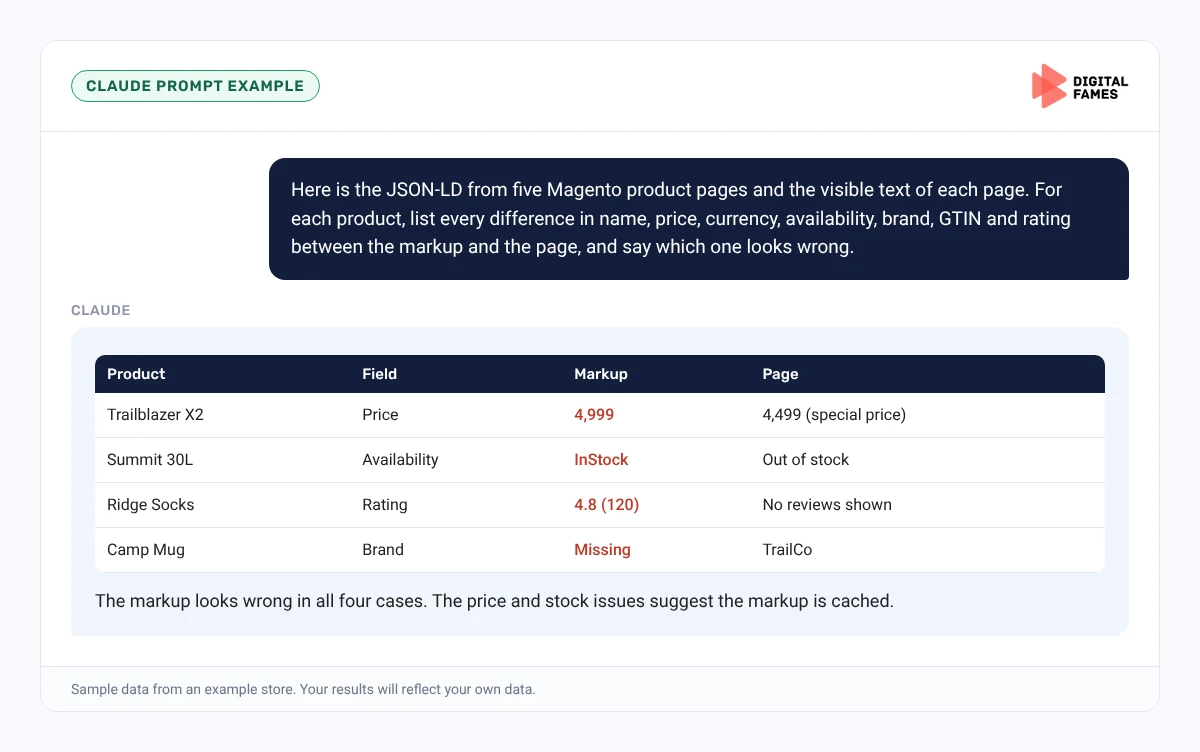
Here is the JSON-LD from five Magento product pages and the visible text of each page. For each product, list every difference in name, price, currency, availability, brand, GTIN and rating between the markup and the page, and say which one looks wrong.
Prompt 2: spot duplicate markup
Claude prompt
Here is the full page source of one product page. Find every block of Product structured data, say where each one appears to come from, and tell me if they conflict.
Common mistakes to avoid
- Theme and extension both outputting Product markup.
- Special prices in markup after the special price has ended.
- Review markup with no visible reviews.
- Missing GTIN and brand across the catalog.
- Not re-testing after upgrades.
How to tell if it is working
Search Console’s Merchant listings and Product snippets reports show valid items and errors. Track them weekly. Our guide to AI search data in Google Search Console explains the AI reports.
Frequently asked questions
Does Magento add product structured data automatically?
Many Magento themes output some product markup, but what they include varies. Check your own product pages with Google’s Rich Results Test.
Do I need special schema for AI Overviews?
No. Google says no special schema.org markup is needed for AI features.
What is the most common Magento markup problem?
Duplicate or conflicting markup from a theme and an extension, and prices that no longer match the page.
How do I mark up configurable products?
Follow Google’s product variants guide so the parent and its variations are understood together.
Related guides: WooCommerce Product Schema and Feeds: What Google AI Mode Actually Needs and Shopify Product Pages AI Can Read: Titles, Descriptions and Schema Made Simple. Browse all our Magento SEO guides.
Next in this series
Next in the Magento series: Bulk Product Content on Magento with Claude, Without Losing Your Brand Voice.
Missed the start? Read Magento SEO for AI Search: Fixing Crawl Waste on Large Catalogs.
Want your Magento markup audited? Our technical SEO team can help. Talk to us.