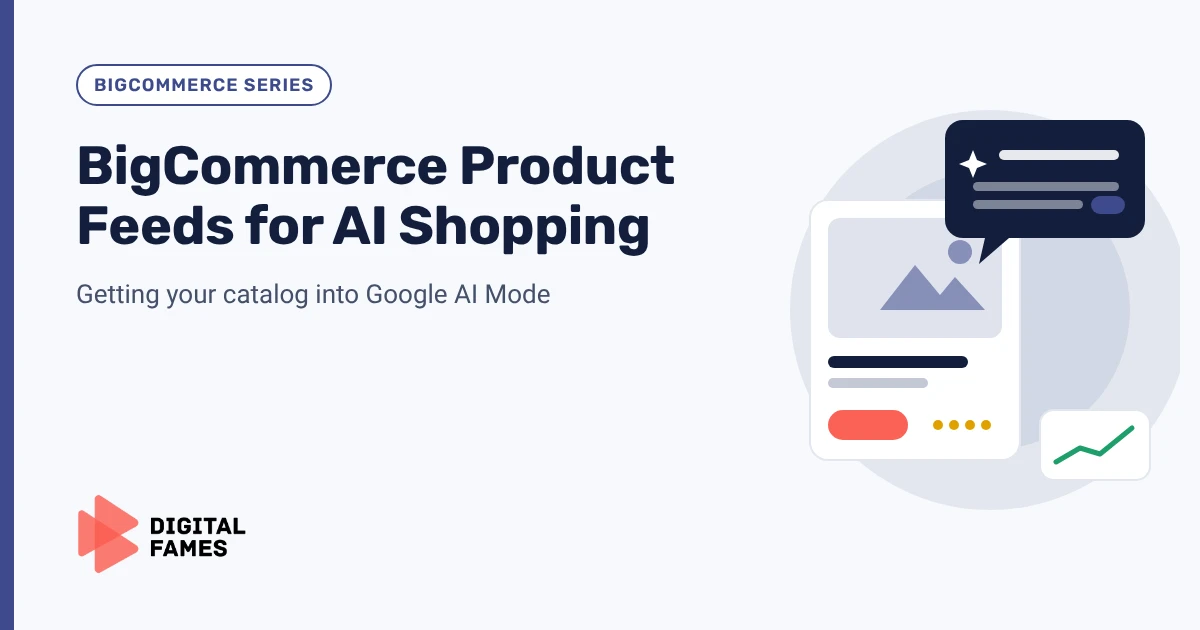
Google AI Mode and Google’s shopping results lean heavily on structured product data. For a BigCommerce store, the most direct way to supply that data is a clean product feed in Google Merchant Center, backed by product pages that say the same thing.
This guide walks you through connecting BigCommerce to Google, cleaning the data that matters, and keeping the feed and your pages in sync.
Quick summary
- BigCommerce connects your catalog to Google Merchant Center and keeps price and stock updated.
- Google recommends using both a Merchant Center feed and on-page structured data.
- Product identifiers (GTIN, MPN, UPC/EAN) and brand are among the most common gaps.
- Your feed and your product pages must agree on price and availability.
- Claude can audit a product export and list the fixes in priority order.
What changed recently
- September 24, 2026: Google’s September 2026 spam update started, listed on Google’s ranking updates page. Accurate, original product data is part of staying on the right side of Google’s spam policies.
- Current guidance: Google’s AI features and your website page says no special markup is needed for AI features, and that structured data should match the visible page.
Google recommends
Google’s product structured data overview recommends providing both on-page structured data and a Merchant Center feed. Together they maximize your eligibility for shopping experiences.
Step by step
1. Connect BigCommerce to Google
BigCommerce’s Google Shopping integration connects your store to Google Merchant Center, lists products and product options, adds new products automatically, and keeps pricing and inventory current so out-of-stock items drop out of listings. Listing edits are managed in Merchant Center.
2. Fill in product identifiers
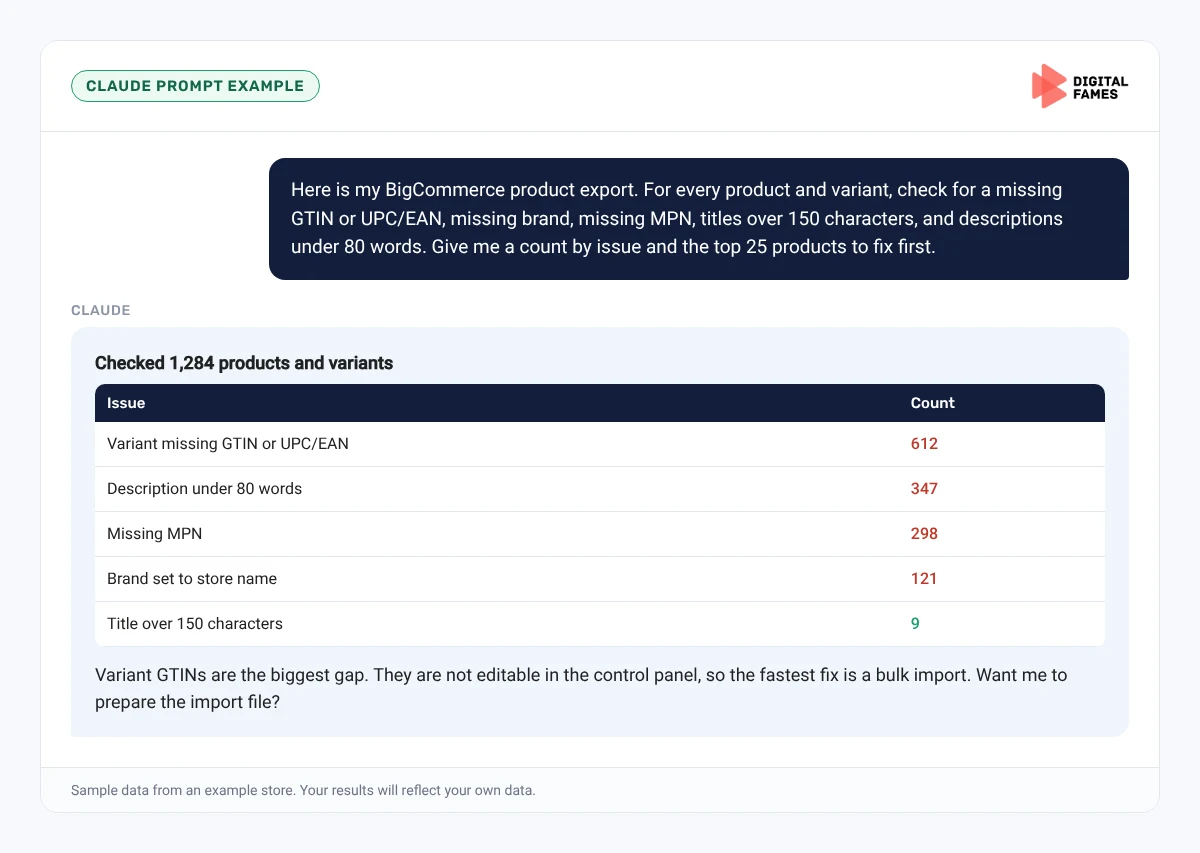
BigCommerce has fields for GTIN, MPN and UPC/EAN in the Product Identifiers section of the product editor (BigCommerce Help). Variant-level GTINs are managed through product import and export or the Catalog API. Fill these for every product and variant that has a barcode.
3. Set brand, category and attributes
Google’s merchant listing documentation lists brand, color, size and material as recommended product properties. Make sure every product has a brand and that variants use clear option names like “Size” and “Color”.
4. Write titles and descriptions for people
Titles should include brand, product type and the key attribute. Descriptions should start with who the product is for and answer the questions shoppers ask. Avoid copying the manufacturer’s text.
5. Check Merchant Center weekly
- Products with warnings or disapprovals, and why.
- Missing identifiers or brand.
- Price or availability mismatches.
- Shipping and returns missing for target countries.
6. Check your product page markup
Run a few product pages through Google’s Rich Results Test. Confirm the price, availability, name and brand match the page and the feed. If you add a schema app, make sure your theme is not already outputting product markup.
Watch out
Fix data in BigCommerce, not in Merchant Center. Changes made only in the feed can be overwritten at the next sync.
Do it faster with Claude
Export your products from BigCommerce as a CSV and share it with Claude, or paste in Merchant Center’s list of issues.
Prompt 1: feed audit
Claude prompt
Here is my BigCommerce product export. For every product and variant, check for a missing GTIN or UPC/EAN, missing brand, missing MPN, titles over 150 characters, and descriptions under 80 words. Give me a count by issue and the top 25 products to fix first, starting with the ones that have the most issues.
Prompt 2: explain Merchant Center issues
Claude prompt
Here are the Merchant Center issues for my store. Group them by cause, explain each in plain English, and tell me which BigCommerce field fixes each one.
Common mistakes to avoid
- Leaving GTINs empty on variants.
- Fixing issues in Merchant Center only.
- Brand left blank or set to the store name for every product.
- Sale prices on the feed that have already ended on the site.
How to tell if it is working
Track approved products in Merchant Center and impressions on product URLs in Search Console. Our guide to AI search data in Google Search Console explains the AI reports.
Frequently asked questions
How do I connect BigCommerce to Google Merchant Center?
Use BigCommerce’s Google Shopping integration, which connects your store to Merchant Center and keeps price and stock updated.
Where do I add GTINs in BigCommerce?
In the Product Identifiers section of the product editor. Variant-level GTINs are managed through import and export or the Catalog API.
Do I need special schema for Google AI Mode?
No. Google says no special markup is needed. Complete, accurate product data is what matters.
How often does the feed update?
BigCommerce’s integration keeps price and inventory current. Check Merchant Center weekly for issues.
Related guides: WooCommerce Product Schema and Feeds: What Google AI Mode Actually Needs and Structured Data on Magento: Product, Offer and Review Markup That Holds Up. Browse all our BigCommerce SEO guides.
Next in this series
Next in the BigCommerce series: BigCommerce Category Pages and Filters: SEO for AI Search.
Want your catalog audited? Our eCommerce SEO team can help. Talk to us.