WooCommerce runs on WordPress, which means your store is already built on open, readable web pages. That is a good starting point for AI shopping. But being readable is not the same as being ready. AI assistants and Google AI Mode still need complete product data, clear policies and a clean feed to recommend you.
Use this checklist to see where your WooCommerce store stands today. Each item takes minutes to check and tells you exactly what to fix.
Quick summary
- Google’s AI features use the same basics as normal search: indexed pages, open crawling, text content and matching structured data.
- Connect Google for WooCommerce so your products reach Merchant Center.
- Complete product data matters more than any plugin: titles, prices, stock, GTINs, images and attributes.
- AI checkout options for WooCommerce, such as Stripe’s agentic suite, are still rolling out. Get your data ready now.
- Claude can run the checklist against a product export in minutes.
What changed recently
- September 24, 2026: Google’s September 2026 spam update started, listed on Google’s ranking updates page. Stores with copied or thin product pages should read Google’s spam policies and fix those pages first. Our guide to fixing thin and duplicate product content covers how.
- Current guidance: Google’s AI features and your website page says there are “no additional requirements to appear in AI Overviews or AI Mode”. Good SEO basics are the entry ticket.
The WooCommerce AI shopping checklist
1. Your products can be crawled and indexed
- Under Settings > Reading in WordPress, make sure “Discourage search engines from indexing this site” is not ticked.
- Check your robots.txt does not block product or category pages. Google’s robots.txt introduction explains the rules.
- If you use a CDN or security plugin, check it does not block search engine crawlers.
2. Every product has the basics filled in
Open your product list and check: a clear title, a description written for shoppers, a regular price, stock status, at least three images with alt text, and the right category.
3. GTINs and brand are set
Google’s merchant listing documentation lists gtin and brand as recommended properties. Add the barcode number (GTIN, UPC or EAN) for every product and variation that has one, using a product field or extension that passes it to both your structured data and your Google feed.
4. Variations are real variations
Use variable products for true options like size and color, each with its own price, stock and image. Google’s product variants guide explains how variants are understood.
5. Store policies are clear and linked
Shipping, returns and contact details should be on clear pages linked from your footer and product pages. AI assistants use these to answer questions like “does this store offer free returns?”
6. Google for WooCommerce is connected
The Google for WooCommerce setup guide walks you through connecting your Google account to Merchant Center, choosing target countries, and syncing shipping and tax. Once products sync, Merchant Center shows which ones are approved and which need fixes.
7. Structured data matches the page
WooCommerce outputs product structured data by default. Test a few product pages in Google’s Rich Results Test and check that price, stock and name match what the page shows. If you use an SEO plugin that also adds product schema, make sure only one source outputs it.
8. You know where AI checkout stands
WooCommerce’s agentic commerce page lists the protocols it is working with, including Google’s Universal Commerce Protocol and the Agentic Commerce Protocol through Stripe’s Agentic Commerce Suite. Agentic checkout for Stripe on WooCommerce is still on the way, so the best move today is to install the Stripe extension and get your catalog data clean.
Expert tip
Fix items 1 to 6 before you think about AI checkout. A store with clean data and a working Google feed is ready for whatever channel comes next.
Do it faster with Claude
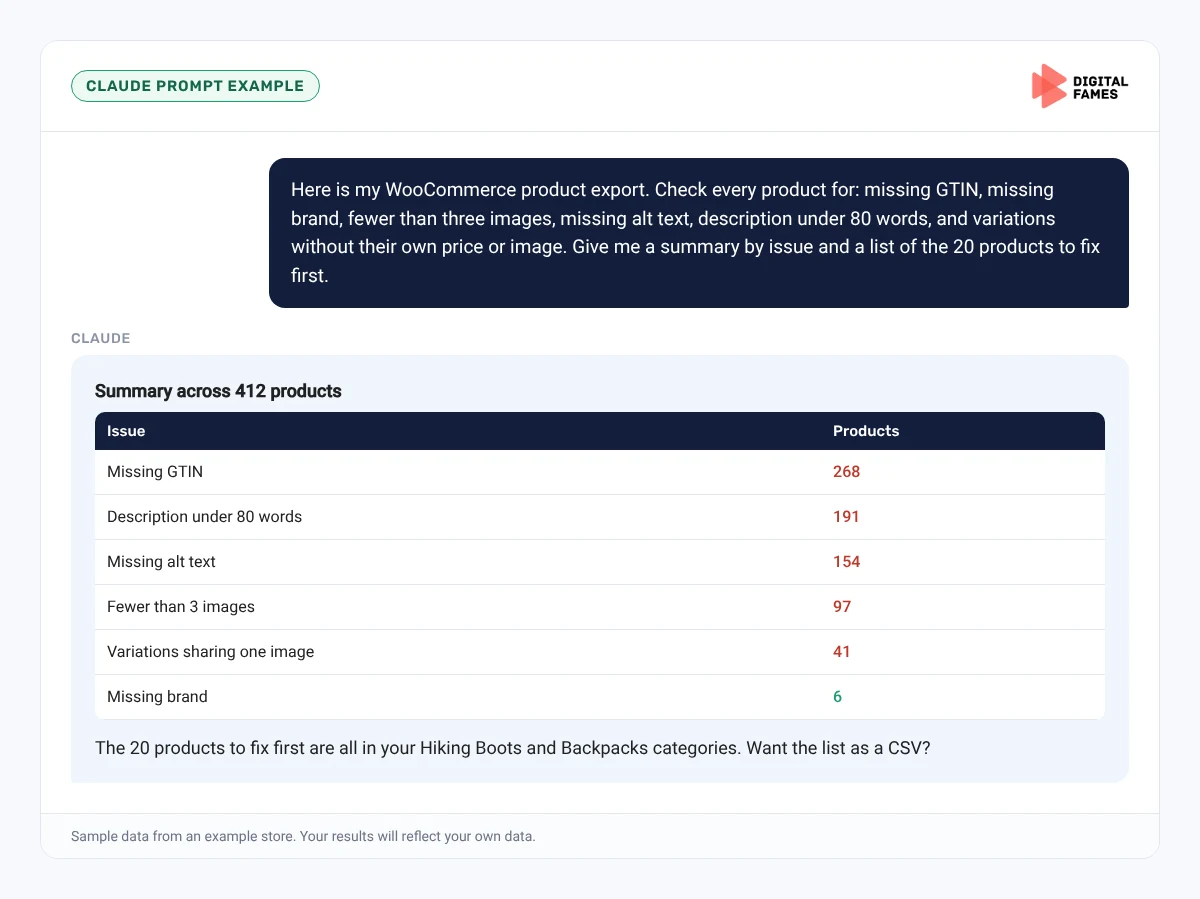
Export your products from Products > All Products > Export as a CSV and share it with Claude. WooCommerce has also published an experimental WooCommerce for Claude plugin that gives Claude read-only access to your store and an AI-readiness score. It is a developer preview, so test it on a staging site first.
Prompt 1: run the checklist on your export
Claude prompt
Here is my WooCommerce product export. Check every product for: missing GTIN, missing brand, fewer than three images, missing alt text, description under 80 words, and variations without their own price or image. Give me a summary by issue and a list of the 20 products to fix first, ordered by how many issues they have.
Prompt 2: policy check
Claude prompt
Here are our shipping, returns and contact pages. List any question a shopper might ask an AI assistant that these pages do not clearly answer, and suggest one sentence to add for each.
Common mistakes to avoid
- Leaving “Discourage search engines” ticked after a site launch.
- Two plugins both outputting product schema with different prices.
- Variations that all share one image and one price.
- Ignoring Merchant Center disapprovals for months.
- Waiting for AI checkout before fixing product data.
How to tell if it is working
Check Merchant Center weekly for approved products. In Search Console, track impressions and clicks on product URLs, and read our guide on AI search data in Google Search Console. In WooCommerce Analytics, watch for orders from visitors who came from AI assistants.
Frequently asked questions
Does WooCommerce work with ChatGPT and Google AI Mode?
Your products can appear in AI answers through normal search and your Google feed. Direct checkout inside AI assistants depends on integrations like Stripe’s agentic suite, which is still rolling out.
Do I need a special plugin for AI search?
No. Google says there are no special requirements for AI features. Clean product data, open crawling and Google for WooCommerce cover the basics.
Does WooCommerce add product schema automatically?
Yes, WooCommerce outputs product structured data. Make sure no other plugin adds a second, conflicting version.
Is WooCommerce for Claude safe to use on my live store?
It is an experimental developer preview with a read-only key by default. Test it on a staging copy first.
Related guides: How to Get Your Shopify Store Recommended in ChatGPT, Gemini and Google AI Mode and BigCommerce Product Feeds for AI Shopping: Getting Your Catalog into Google AI Mode. Browse all our WooCommerce SEO guides.
Next in this series
Next in the WooCommerce series: WooCommerce Product Schema and Feeds: What Google AI Mode Actually Needs.
Need help getting your store ready? Our team handles WordPress and WooCommerce development and eCommerce SEO. Talk to us.